GA4 Event Tracking: Custom Events Beyond the Basics
Most GA4 setups stop at the default events and never go further — which means most GA4 setups are blind to the actions that actually matter on their site. Page views and scrolls are free, but they don’t tell you whether someone clicked your pricing toggle, played your demo video, or expanded your FAQ. Custom events do. This guide takes you past the basics into building custom events that capture what your business cares about.
If you’re still mapping out which actions are worth tracking, start from the key website metrics that matter — your custom events should feed them directly.
The Four Types of GA4 Events
Before you build anything, you need to know what GA4 already collects, so you don’t waste time tracking something you already have.
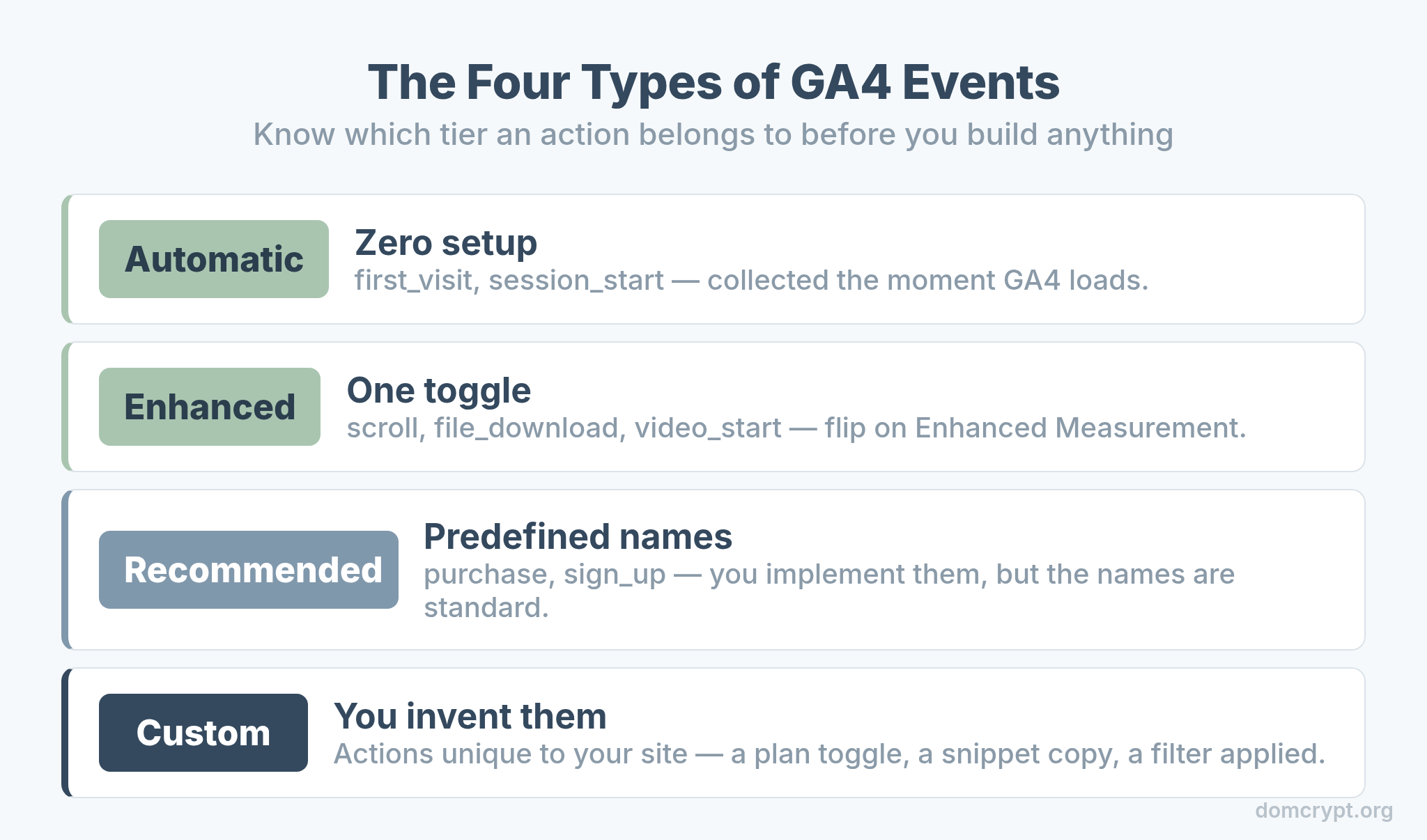
GA4 events come in four flavors. Automatically collected events like first_visit and session_start need zero setup. Enhanced measurement events like scroll and file_download are a single toggle. Recommended events are predefined names like purchase and sign_up that you implement yourself. Custom events are the ones you invent for actions unique to your site. The skill is knowing which tier an action belongs to before you build.
Recommended vs Custom: Use the Right Name
Here’s a rule that saves you from a fractured dataset: if Google has a recommended event name for what you’re tracking, use it. Inventing user_purchase when purchase already exists locks you out of GA4’s built-in reports and e-commerce features.
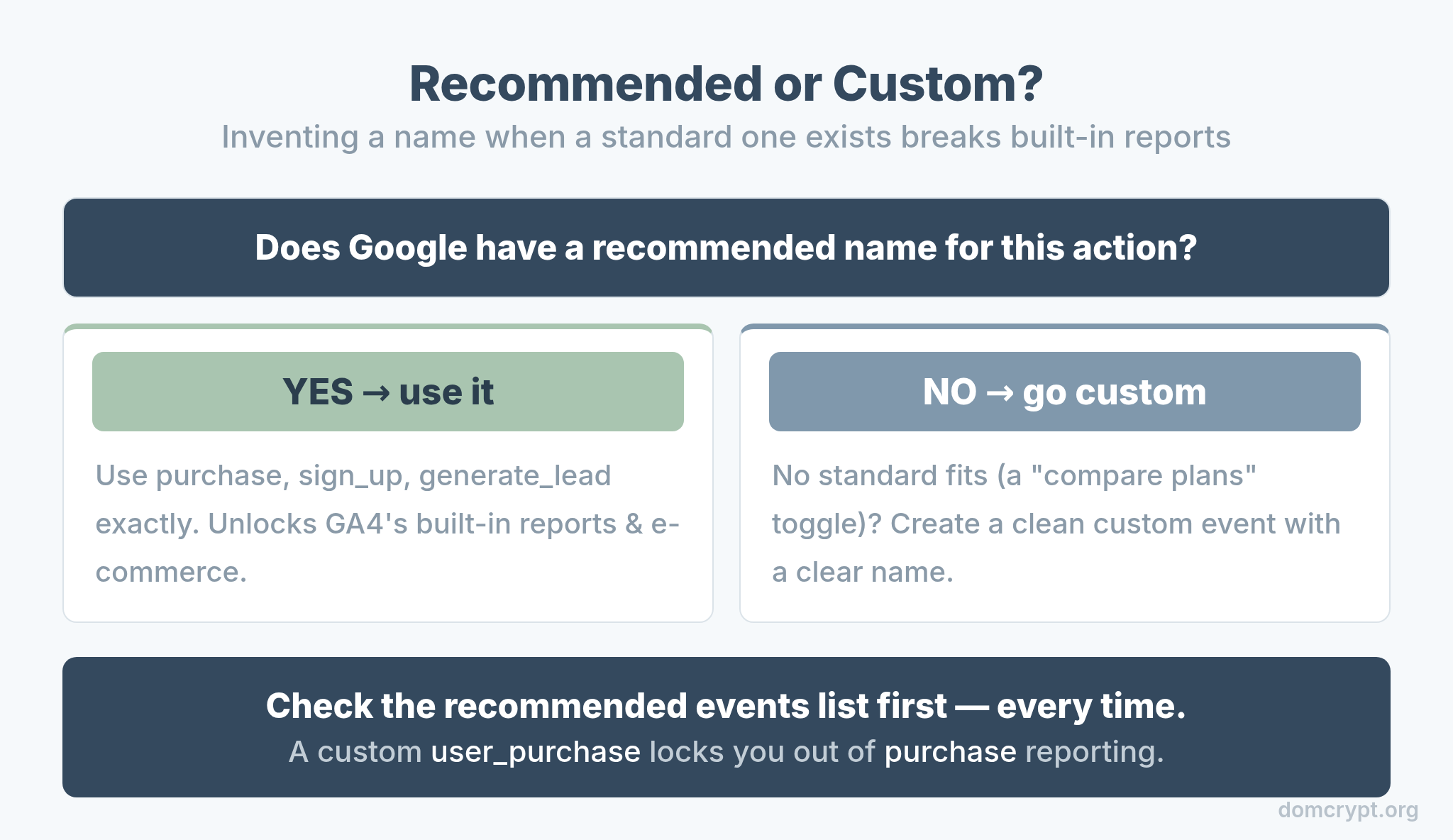
Only reach for a custom event when no recommended name fits. A “compare plans” toggle, a “copy code snippet” click, a “filter applied” action — these have no standard name, so a clean custom event is exactly right. Check Google’s recommended events list first, every time.
Two Ways to Create a Custom Event
You have two main routes, and they suit different situations.
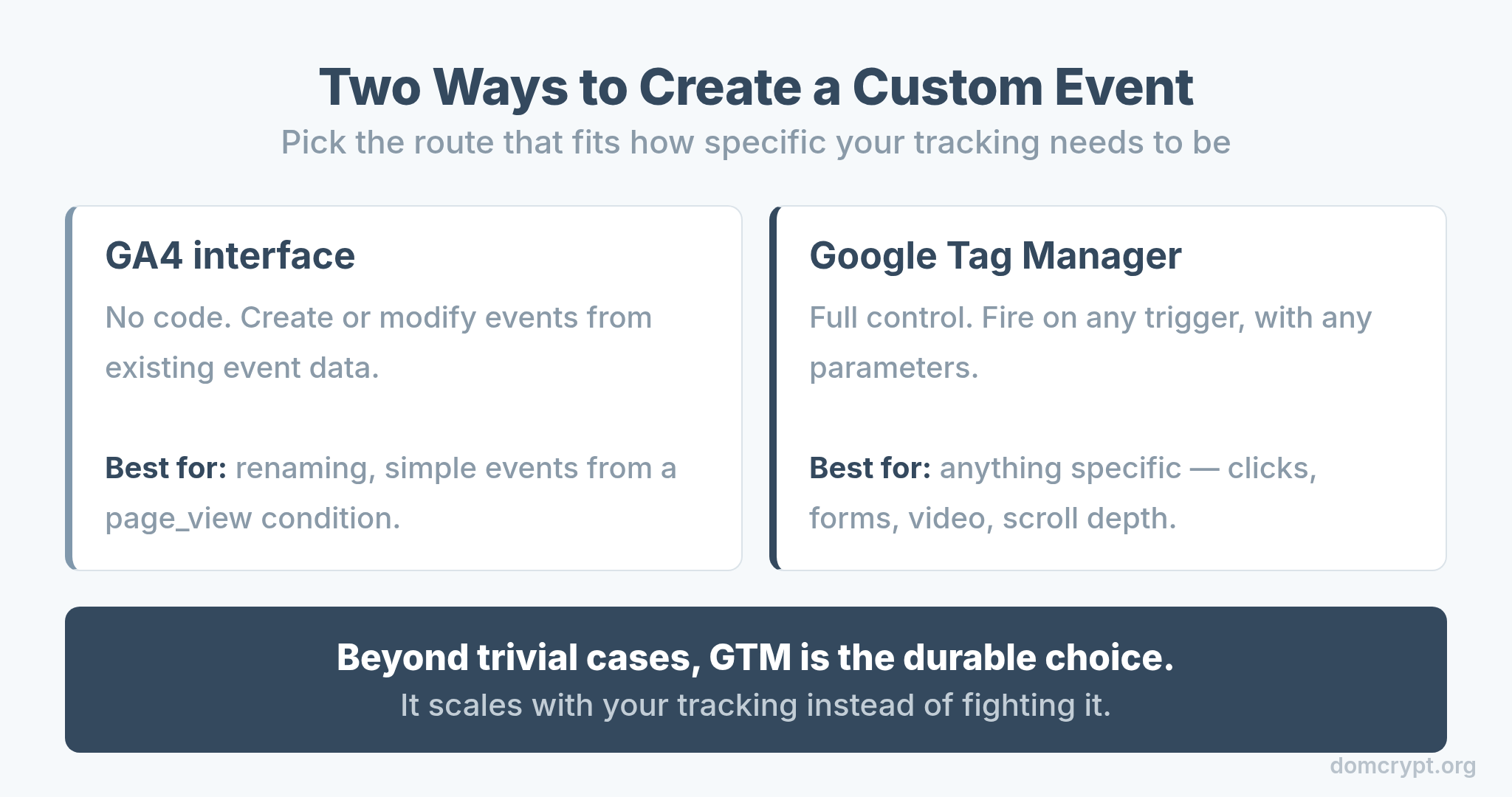
The GA4 interface lets you create or modify events from existing event data, with no code — great for simple cases like renaming an event or creating one from an existing page_view condition. Google Tag Manager is the heavyweight: it fires events on any trigger you can define, with full control over parameters. For anything beyond trivial, GTM is the durable choice. A solid GTM setup pays off the moment your tracking gets specific.
Anatomy of a Custom Event
A custom event is a name plus the parameters that describe it. The name tells you what happened; the parameters tell you the useful details.
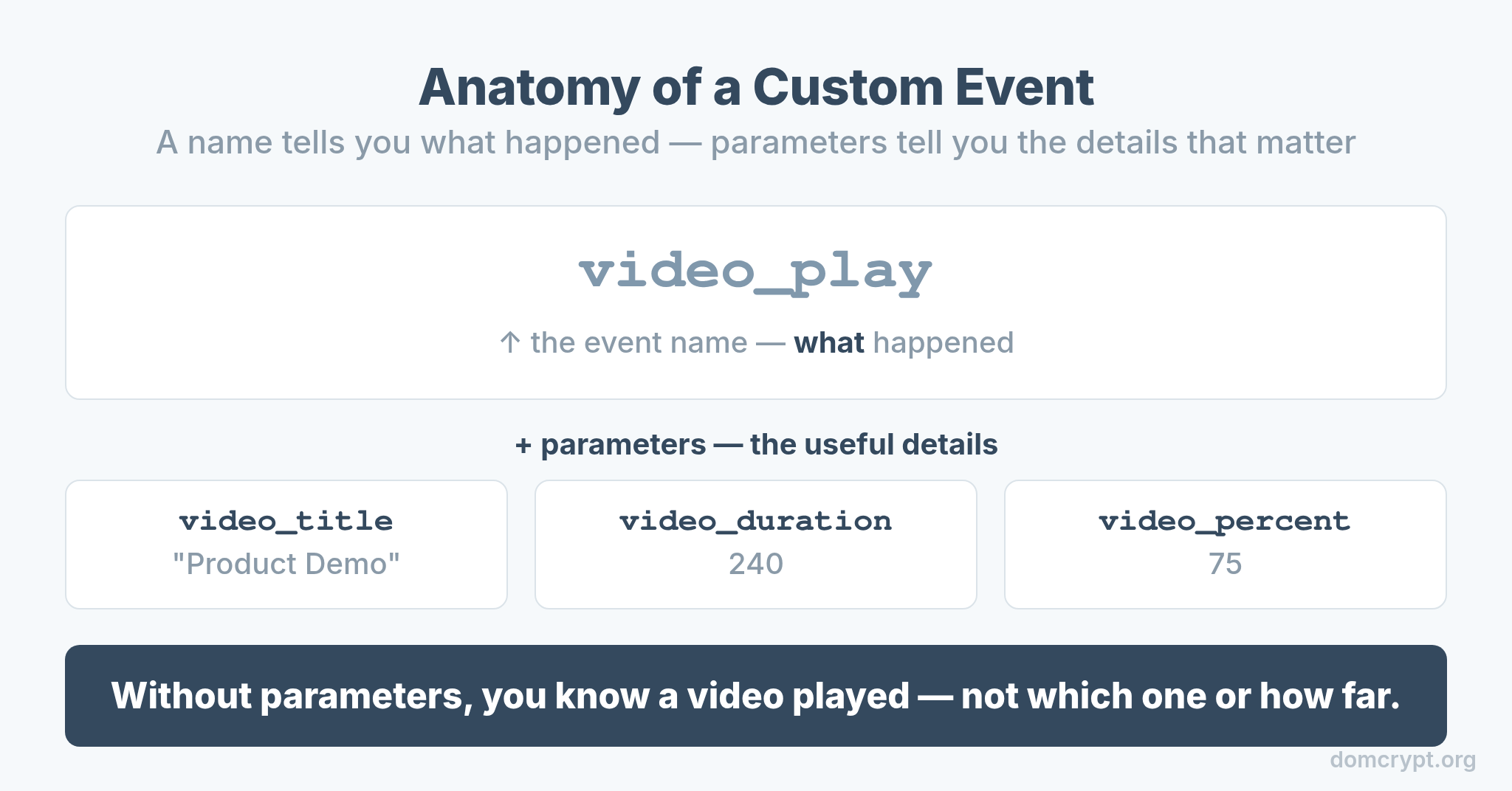
Take a video_play event. The name is video_play; the parameters might be video_title, video_duration, and video_percent. Without parameters, you’d know a video played but not which one or how far. Parameters are where custom events earn their keep, so plan them deliberately and name them consistently — sloppy parameter names are as harmful as sloppy event names.
Parameters Need to Become Custom Dimensions
This is the step everyone forgets, then files a bug report about. A custom parameter you send is not visible in standard reports until you register it as a custom dimension.
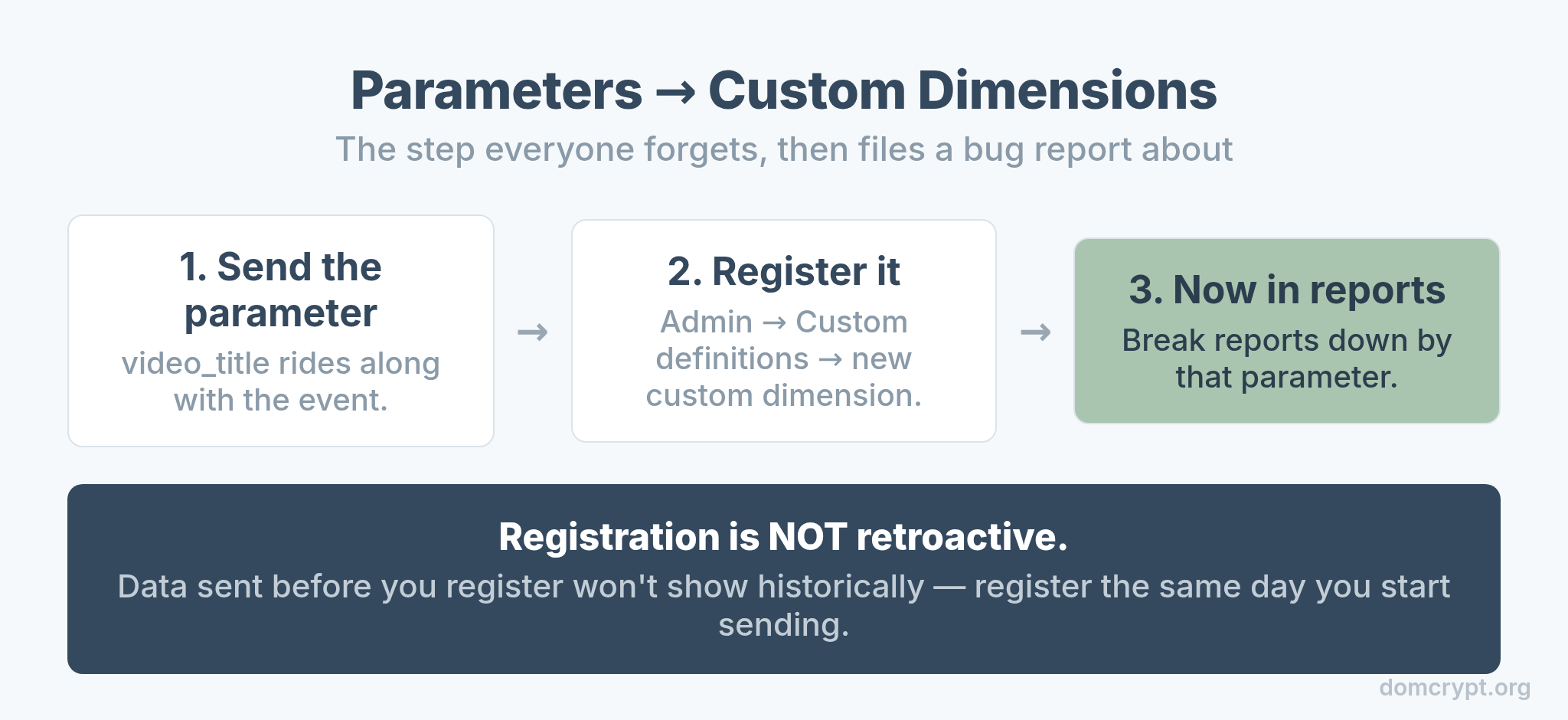
You send the parameter, then go to Admin → Custom definitions and register it as a custom dimension. Only then can you break reports down by that parameter. Registration isn’t retroactive, either — data collected before you register won’t show historically. Register your parameters early, ideally the same day you start sending them. This is also what makes your events usable in an attribution analysis, where the parameter detail reveals which interactions drove the result.
Common Mistakes and Limits
Custom events are powerful but bounded. Respect the guardrails and you’ll avoid the painful cleanups.
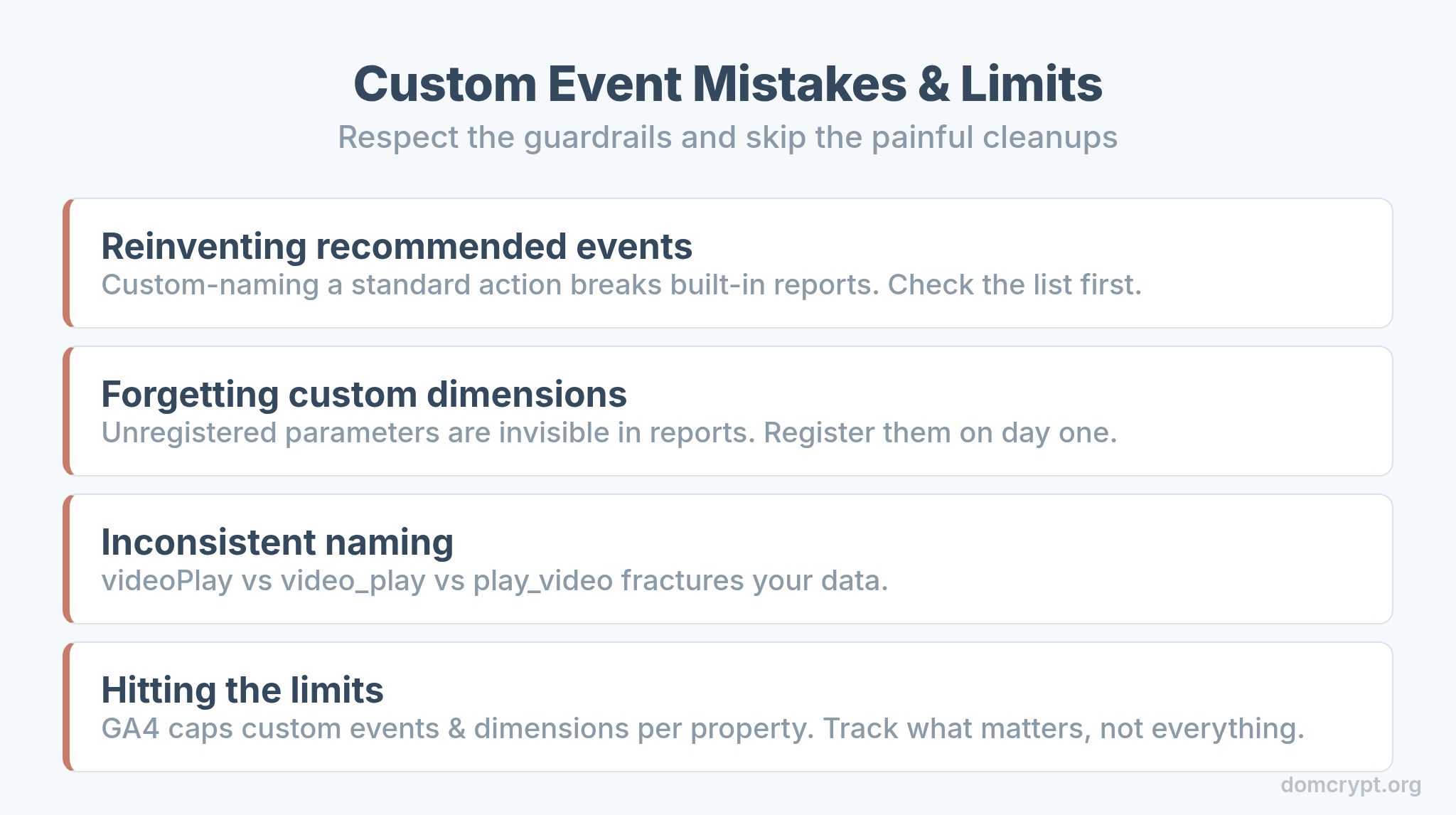
- Reinventing recommended events. Always check the recommended list first. Custom-naming a standard action breaks built-in reports.
- Forgetting custom dimensions. Unregistered parameters are invisible in reports. Register them the day you start sending them.
- Inconsistent naming.
videoPlay,video_play, andplay_videofor the same action fracture your data. Pick one convention. - Hitting the limits. GA4 caps custom events and dimensions per property. Track what matters, not everything possible.
A spike in a custom event is often a tracking change rather than real behavior — the same diagnostic instinct you’d apply to bounce and engagement rates. When a number jumps, check the tag before the strategy.
The Bottom Line
Custom events are how GA4 stops being a generic pageview counter and starts measuring your actual business. Know the four event types so you don’t rebuild what’s free, prefer recommended names when they exist, and reach for custom events only when nothing standard fits. Build them as a clean name plus deliberate parameters, register those parameters as custom dimensions the same day, and hold a single naming convention across the whole property. Do that, and every important action on your site becomes a number you can actually analyze.