UTM Parameters Explained: How to Tag Your Marketing Campaigns
UTM parameters — short for Urchin Tracking Module — are small text tags you add to the end of a URL. When someone clicks that tagged link, your analytics tool reads those tags and records exactly where the visitor came from, which campaign brought them, and what specific piece of content they clicked. Without them, a huge chunk of your marketing traffic shows up as “direct” or “unassigned” in your reports — making it impossible to know what is actually working.
What Are UTM Parameters?
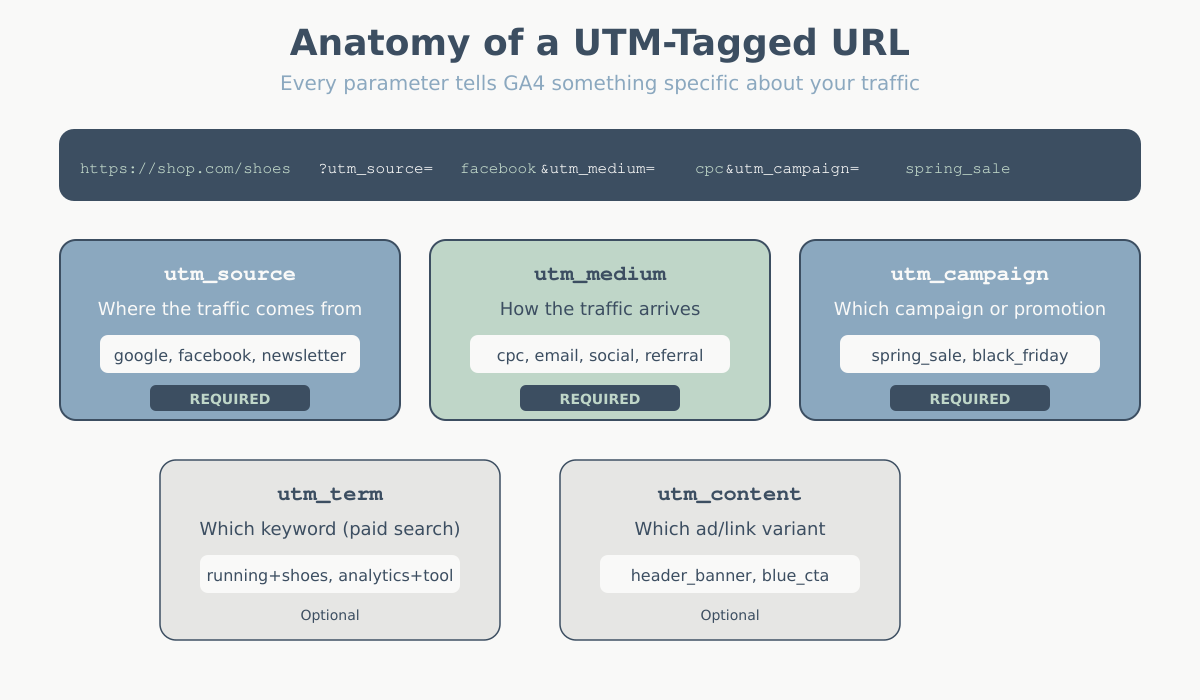
UTM parameters — short for Urchin Tracking Module — are small text tags you add to the end of a URL. When someone clicks that tagged link, your analytics tool (like Google Analytics 4) reads those tags and records exactly where the visitor came from, which campaign brought them, and what specific piece of content they clicked.
Here is what a tagged URL looks like:
https://domcrypt.org/key-website-metrics/?utm_source=newsletter&utm_medium=email&utm_campaign=march_roundupEverything after the ? is the query string. Each utm_ parameter is a key-value pair separated by &. Your analytics tool strips these out, stores them, and associates the visit with the values you defined.
Without UTM tags, traffic from email campaigns, social media posts, QR codes, and many paid ads gets lumped into “direct” or “(not set)” in your reports. You end up guessing which campaign drove results instead of knowing. UTM parameters are the foundation of accurate marketing attribution — they connect every click to the effort that produced it.
The concept is simple: tag your links before you share them, and your analytics data becomes dramatically more useful.
The Five UTM Parameters
There are five UTM parameters. Three are required for the tag to work properly. Two are optional but useful in specific situations.
utm_source (Required)
What it answers: Where is the traffic coming from?
This identifies the platform or publisher sending visitors to you. Think of it as the “who” — which website, app, or platform is the referrer.
Examples: google, facebook, newsletter, linkedin, partner_site
utm_medium (Required)
What it answers: What type of marketing channel is this?
This identifies the marketing medium or channel category. It describes how the traffic arrives, not where it comes from.
Examples: cpc (cost-per-click/paid search), email, social, organic_social, referral, display, affiliate
utm_campaign (Required)
What it answers: Which specific marketing campaign is this?
This is the name of your promotion, product launch, sale, or content campaign. It is the most specific of the three required parameters.
Examples: spring_sale_2025, product_launch_v2, weekly_digest_jan15
utm_term (Optional)
What it answers: Which keyword or targeting term triggered this ad?
Originally designed for paid search campaigns to identify the keyword that triggered the ad. Less commonly used now that Google Ads has auto-tagging, but still valuable for non-Google paid search platforms or when you want to track specific targeting terms.
Examples: web+analytics+tools, best+crm+software
utm_content (Optional)
What it answers: Which specific link or creative variation was clicked?
Use this to differentiate between multiple links in the same campaign that point to the same destination. It is perfect for A/B testing ad creatives, distinguishing between the header link and footer link in a newsletter, or tracking different banner sizes.
Examples: hero_banner, sidebar_cta, blue_button, version_a
Here is a reference table with all five parameters at a glance:
| Parameter | Required? | Identifies | Example Value |
|---|---|---|---|
utm_source |
Yes | The platform or referrer | facebook |
utm_medium |
Yes | The marketing channel type | cpc |
utm_campaign |
Yes | The campaign name | spring_sale_2025 |
utm_term |
No | The paid keyword or targeting term | analytics+tools |
utm_content |
No | The specific creative or link variant | hero_banner |
How to Build Tagged URLs
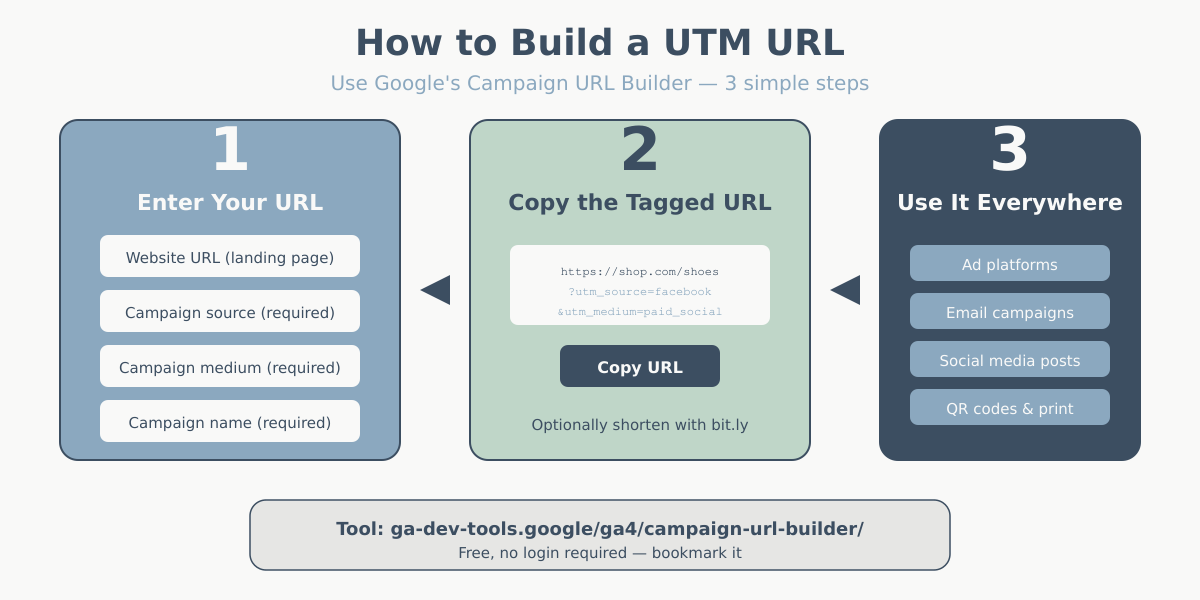
You can build UTM-tagged URLs in two ways: manually, or with Google’s free Campaign URL Builder tool.
Using Google’s Campaign URL Builder
The fastest way to get started is the Google Analytics Campaign URL Builder. It is a simple web form where you fill in the URL and your parameter values, and it generates the tagged link for you.
Step by step:
- Open the Campaign URL Builder.
- Enter your destination URL in the “website URL” field (e.g.,
https://domcrypt.org/key-website-metrics/). - Fill in
utm_source,utm_medium, andutm_campaign. Addutm_termandutm_contentif needed. - Copy the generated URL from the output field.
- Test the link by clicking it yourself and checking that the page loads correctly.
Building URLs Manually
There is no magic to UTM parameters — they are just query string key-value pairs. You can type them yourself:
- Start with your destination URL:
https://domcrypt.org/some-page/ - Add a
?after the URL (or&if the URL already has query parameters). - Append each parameter as
key=value, separated by&.
https://domcrypt.org/some-page/?utm_source=linkedin&utm_medium=organic_social&utm_campaign=q1_tipsWhen building manually, double-check that you have not accidentally added a space (use underscores or hyphens instead) and that every & is in place.
Bulk Tagging
If you are creating dozens of tagged URLs for a large campaign, manual tagging gets tedious fast. Use a spreadsheet (more on this later) where you define the parameter values in columns and use a formula to concatenate the final URL. This is faster and eliminates typos.
UTM Examples for Every Major Channel
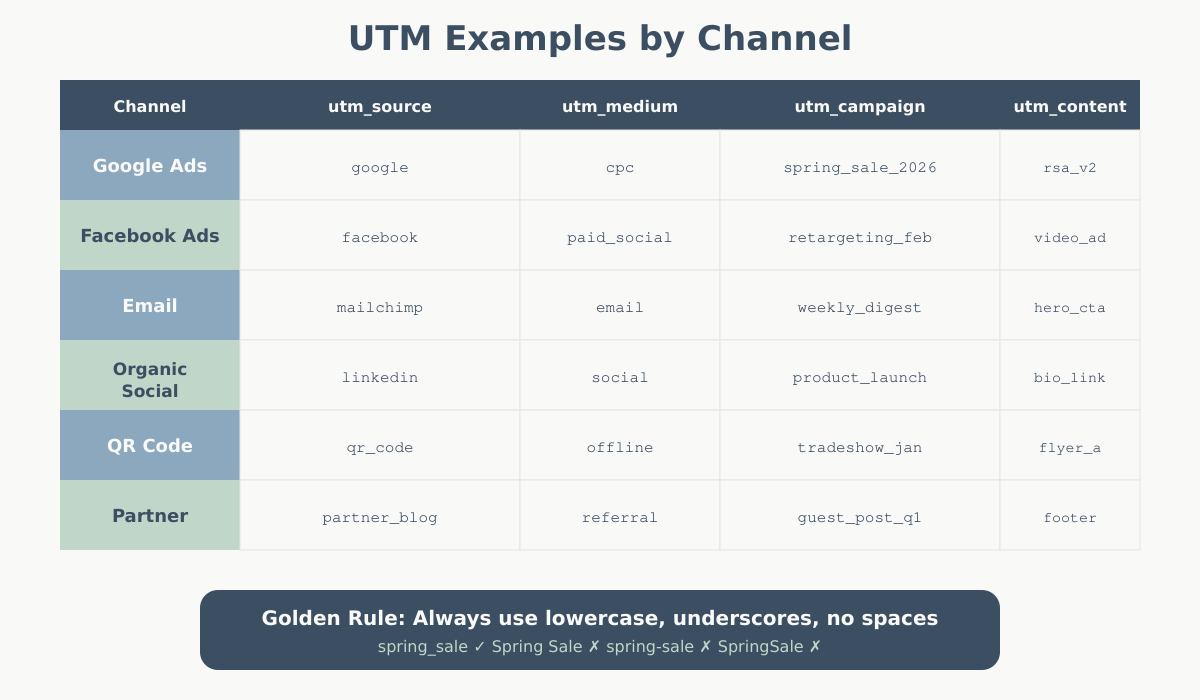
Here are ready-to-adapt UTM patterns for the most common marketing channels. Swap in your own domain, campaign name, and content identifiers.
| Channel | Example Tagged URL |
|---|---|
| Google Ads | ?utm_source=google&utm_medium=cpc&utm_campaign=spring_sale&utm_term=analytics+tools&utm_content=responsive_ad_v1 |
| Facebook / Meta Ads | ?utm_source=facebook&utm_medium=paid_social&utm_campaign=retargeting_may&utm_content=carousel_ad |
| Email Newsletter | ?utm_source=newsletter&utm_medium=email&utm_campaign=weekly_digest_jan15&utm_content=header_link |
| Organic Social (LinkedIn) | ?utm_source=linkedin&utm_medium=organic_social&utm_campaign=thought_leadership_q1 |
| Organic Social (Twitter/X) | ?utm_source=twitter&utm_medium=organic_social&utm_campaign=blog_promo |
| QR Code (print flyer) | ?utm_source=qr_code&utm_medium=print&utm_campaign=conference_booth_2025&utm_content=flyer_a |
| Influencer Partnership | ?utm_source=creator_jane&utm_medium=influencer&utm_campaign=product_review_june |
| Affiliate Link | ?utm_source=partner_techblog&utm_medium=affiliate&utm_campaign=summer_promo |
A note on Google Ads: If you use Google Ads with auto-tagging enabled (the gclid parameter), Google already sends detailed campaign data to GA4 automatically. Adding manual UTM parameters on top of auto-tagging can cause discrepancies. Use UTMs for Google Ads only if auto-tagging is disabled or if you need the data in a non-Google analytics tool.
A note on QR codes: QR codes are just URLs in visual form. Tag the destination URL with UTM parameters before generating the QR code. The scanner’s browser will follow the full tagged URL, and your analytics tool records it like any other click. Use descriptive utm_content values (like flyer_a vs. poster_b) to measure which physical materials perform best.
UTM Naming Conventions and Best Practices
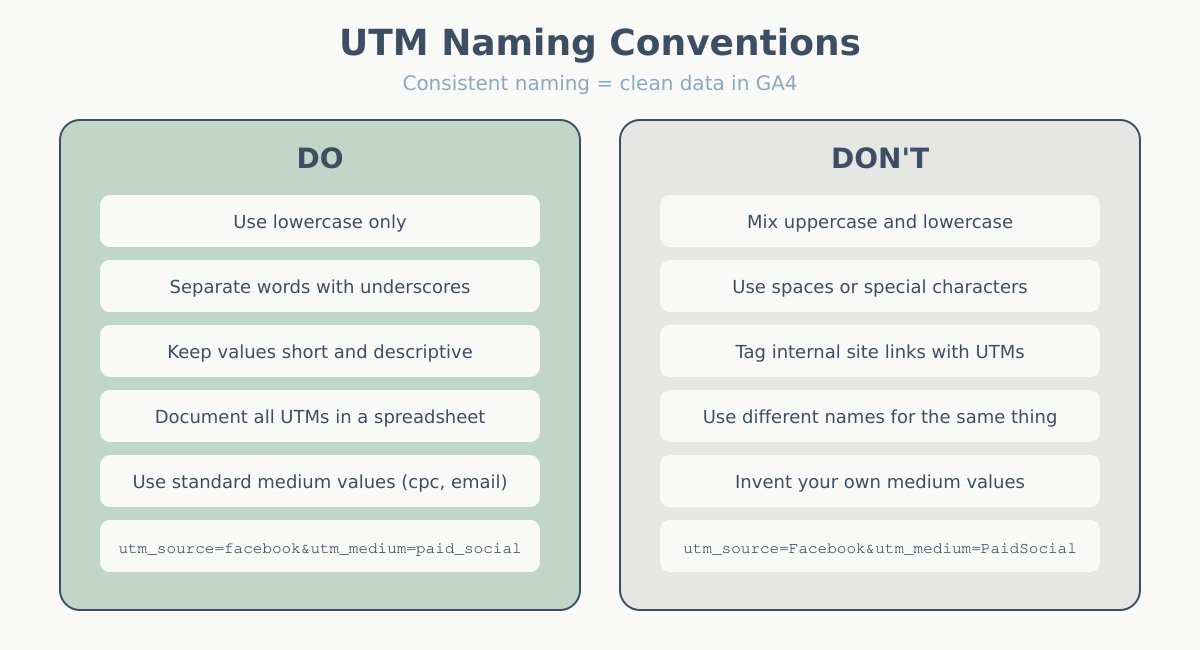
The biggest problem with UTM parameters is not the tagging itself — it is inconsistency. If one team member tags an email campaign as utm_medium=Email and another uses utm_medium=email, GA4 treats them as two separate mediums. Your reports fragment, and you lose the ability to see total email performance in one row.
Follow these rules from day one:
1. Use lowercase for everything.
UTM values are case-sensitive. Facebook, facebook, and FACEBOOK appear as three different sources. Pick lowercase and stick with it: facebook.
2. Use underscores or hyphens instead of spaces.
Spaces in URLs get encoded as %20, which makes values ugly and hard to read in reports. Use spring_sale or spring-sale, not spring sale. Pick one separator and use it everywhere.
3. Match GA4’s default channel grouping values for utm_medium.
GA4 uses default channel grouping rules that look at the medium value to classify traffic. Use these standard values so your traffic lands in the right channel group:
cpcorppc— Paid Searchorganic— Organic Search (rarely used manually)email— Emailsocial,organic_social— Organic Socialpaid_social— Paid Socialdisplay— Displayaffiliate— Affiliatesreferral— Referralvideo— Video
4. Keep campaign names descriptive but concise.
Include enough information to identify the campaign later: product or topic, time period, and purpose. Example: webinar_analytics101_mar2025. Avoid vague names like campaign1 or test.
5. Document every value you use.
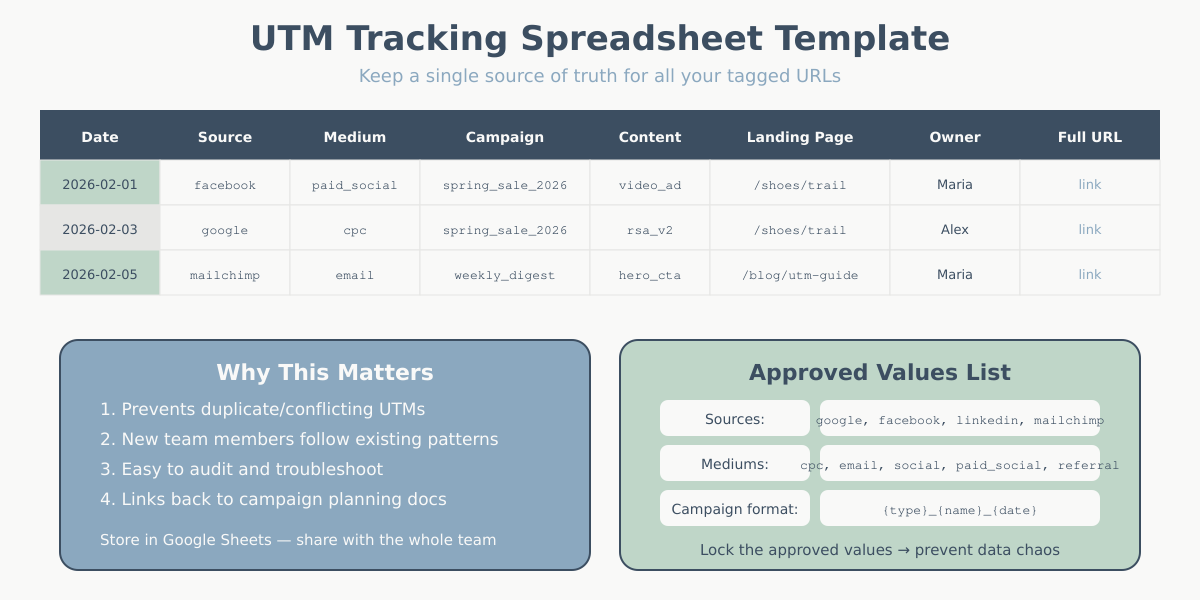
Maintain a shared reference document (spreadsheet, wiki page, or Notion table) listing every approved utm_source, utm_medium, and utm_campaign value. New team members should check the list before creating new tags.
6. Never tag internal links.
UTM parameters are for external traffic arriving at your site. If you add UTM tags to links within your own website, every click resets the session’s source attribution. A visitor who arrived from your email campaign will suddenly appear as utm_source=homepage_banner. This destroys your attribution data and inflates session counts.
Quick checklist for every link you tag:
- All values are lowercase
- No spaces (underscores or hyphens only)
utm_mediummatches GA4 channel grouping standards- Campaign name includes enough context to identify it months later
- The tagged URL actually loads (test it!)
- The values are logged in your shared tracking spreadsheet
Where to Find UTM Data in GA4
Once visitors arrive via tagged links, GA4 stores the UTM values as session-scoped dimensions. Here is where to find them. If you are new to GA4, the GA4 orientation guide covers the interface basics.

Traffic Acquisition Report
Go to Reports > Acquisition > Traffic acquisition. This report shows how sessions (not users) are acquired. By default it groups by “Session default channel group,” but you can change the primary dimension to:
- Session source — shows your
utm_sourcevalues - Session medium — shows your
utm_mediumvalues - Session campaign — shows your
utm_campaignvalues - Session source / medium — shows the combined view (e.g.,
newsletter / email)
You can also add a secondary dimension to cross-reference source with campaign, or campaign with content.
Explorations
For more flexible analysis, use Explore to build custom reports. Create a Free-form exploration and add these dimensions:
- Session source
- Session medium
- Session campaign
- Session manual ad content (maps to
utm_content) - Session manual term (maps to
utm_term)
Pair these with metrics like sessions, engaged sessions, engagement rate, conversions, and revenue to see how each tagged campaign performs.
Understanding How GA4 Maps UTM Parameters
Here is how each UTM parameter maps to GA4 dimensions:
| UTM Parameter | GA4 Dimension Name | Scope |
|---|---|---|
utm_source |
Session source | Session |
utm_medium |
Session medium | Session |
utm_campaign |
Session campaign | Session |
utm_term |
Session manual term | Session |
utm_content |
Session manual ad content | Session |
All five are session-scoped, meaning they describe the session in which the user arrived — not the user themselves. If the same user visits twice with different UTM tags, each session gets its own attribution.
Once you can see which campaigns drive traffic, the next step is tracking what those visitors do. Setting up conversion tracking in GA4 lets you connect UTM-tagged campaigns directly to goals and revenue.
Common UTM Mistakes (and How to Avoid Them)
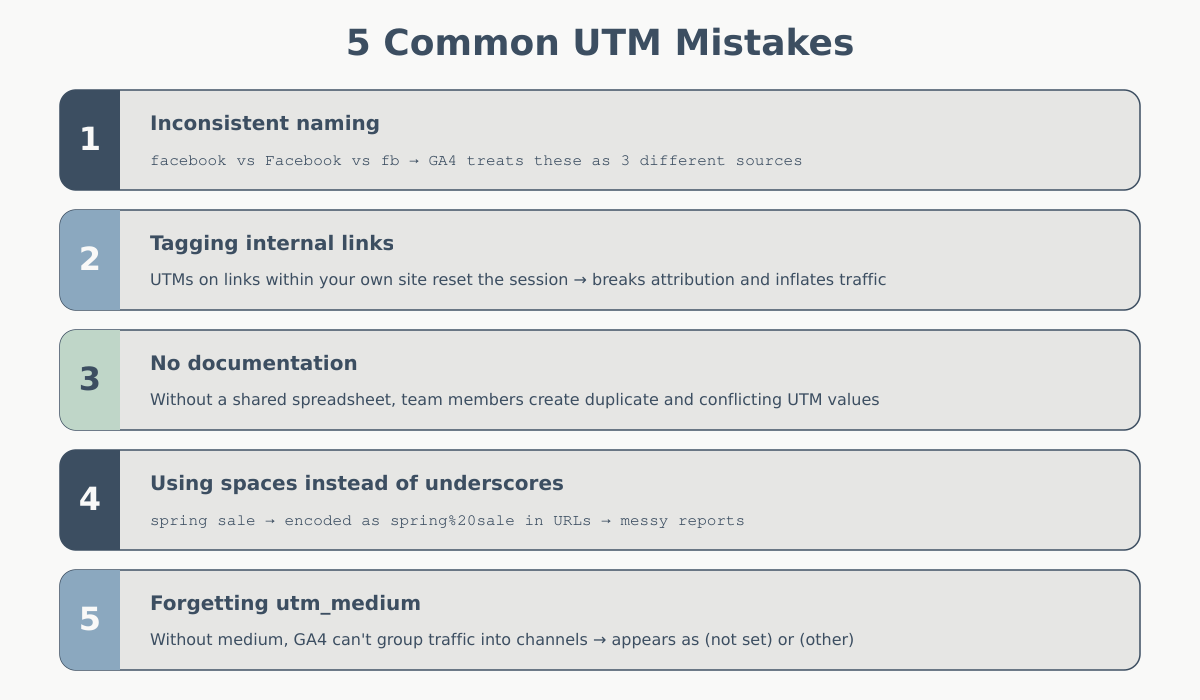
These are the errors that show up in nearly every analytics audit. Avoid them and your campaign data will be cleaner than 90% of the sites out there.
1. Inconsistent capitalization.
utm_source=Facebook and utm_source=facebook create two separate rows in every report. Fix: enforce lowercase in your naming convention document and use a URL builder that auto-lowercases values.
2. Tagging internal links.
This is the most damaging mistake. Adding UTM parameters to links within your own site (like a homepage banner linking to a product page) resets the visitor’s session source. A user who arrived from a paid ad will suddenly be attributed to homepage_banner. Your paid campaign looks like it drove zero conversions when it actually drove many. Fix: use UTM parameters only for links on external platforms pointing to your site.
3. Using UTMs alongside Google Ads auto-tagging.
Google Ads auto-tagging (via gclid) already sends detailed cost, keyword, and ad group data to GA4. If you also add manual UTM parameters, GA4 may report conflicting source/medium values. Fix: rely on auto-tagging for Google Ads. Use UTMs for non-Google paid channels, email, social, and other sources.
4. Forgetting to document.
You tag a campaign as utm_campaign=q1_push. Three months later, nobody remembers what “q1_push” referred to. Fix: log every campaign tag in a shared spreadsheet with the campaign name, date, responsible team member, and a description.
5. Spaces and special characters in values.
Spaces turn into %20. Ampersands (&) break the URL. Fix: use only lowercase letters, numbers, underscores, and hyphens.
6. Not testing the tagged URL.
A misplaced ? or a missing & can break the link entirely, sending visitors to a 404 page. Fix: click every tagged URL before distributing it. Verify the page loads and check in GA4’s Realtime report that the source/medium/campaign show up correctly.
7. Over-tagging with unnecessary parameters.
Not every link needs all five parameters. If you are sharing a single blog post on LinkedIn with no A/B test, you do not need utm_term or utm_content. Unused parameters add clutter to your reports and URLs. Fix: use utm_term and utm_content only when you have a genuine reason to differentiate.
Build Your UTM Tracking System
A UTM tracking spreadsheet keeps your team aligned, prevents naming chaos, and gives you a historical record of every tagged link you have created. Here is what to include.
Recommended Spreadsheet Columns
| Column | Purpose | Example |
|---|---|---|
| Date created | When the link was generated | 2025-03-15 |
| Created by | Who made the link | Sarah M. |
| Destination URL | The page being linked to | https://domcrypt.org/key-website-metrics/ |
| utm_source | Traffic source | newsletter |
| utm_medium | Channel type | |
| utm_campaign | Campaign name | weekly_digest_mar15 |
| utm_term | Keyword (if applicable) | — |
| utm_content | Creative variant (if applicable) | cta_button |
| Full tagged URL | The final URL (auto-generated by formula) | (concatenated) |
| Campaign description | What this campaign is about | Weekly newsletter, analytics tips edition |
| Status | Active, completed, or paused | Active |
URL Formula
In Google Sheets, use a formula to auto-build the tagged URL from your parameter columns. Assuming destination URL is in column C, source in D, medium in E, campaign in F:
=C2&"?utm_source="&D2&"&utm_medium="&E2&"&utm_campaign="&F2Extend this with conditional logic to include utm_term and utm_content only when those cells are not empty:
=C2&"?utm_source="&D2&"&utm_medium="&E2&"&utm_campaign="&F2&IF(G2<>"","&utm_term="&G2,"")&IF(H2<>"","&utm_content="&H2,"")Team Governance
A spreadsheet is only useful if the team actually uses it. Establish these rules:
- Every tagged link gets logged in the sheet before it goes live.
- New source or medium values must be approved against the existing taxonomy. No freelancing.
- Review the sheet quarterly. Archive completed campaigns, clean up any inconsistencies, and update the approved values list.
- If you use Google Tag Manager, consider creating a GTM variable that validates or normalizes UTM values on the fly — this catches stray values from partners or contractors who do not follow your conventions.
Understanding web analytics fundamentals and knowing which key website metrics to track will help you decide which campaigns deserve the most tagging attention.
Wrapping Up
UTM parameters are one of the simplest yet highest-impact tools in your analytics toolkit. They require no code changes, no developer help, and no paid tools. All they ask is a consistent naming system and the discipline to tag every external link.
Start with the three required parameters — utm_source, utm_medium, and utm_campaign — and build from there. Create your tracking spreadsheet, get your team on the same page with naming conventions, and test every link before it goes live.
The payoff is immediate: instead of staring at a wall of “direct / (none)” in your GA4 reports, you will see exactly which email, which social post, and which ad creative brought each visitor to your site. That is the difference between hoping your marketing works and knowing it does.