Cross-Domain Tracking in GA4: Complete Setup Guide
If your visitors ever cross from one domain to another — your marketing site to a separate checkout, your app on a subdomain, a third-party booking page — GA4 quietly breaks unless you tell it those domains are one journey. Without cross-domain tracking, a single customer becomes two strangers, your traffic sources lie, and your best campaigns look like failures. This guide fixes that in a few clicks and explains exactly what it repairs.
Cross-domain problems distort almost every number you care about, so it’s worth checking before you trust your key website metrics at all — broken domain handling poisons the whole dataset.
What Breaks Without Cross-Domain Tracking
To see why this matters, look at what GA4 does when a visitor moves between your domains and you haven’t configured it.
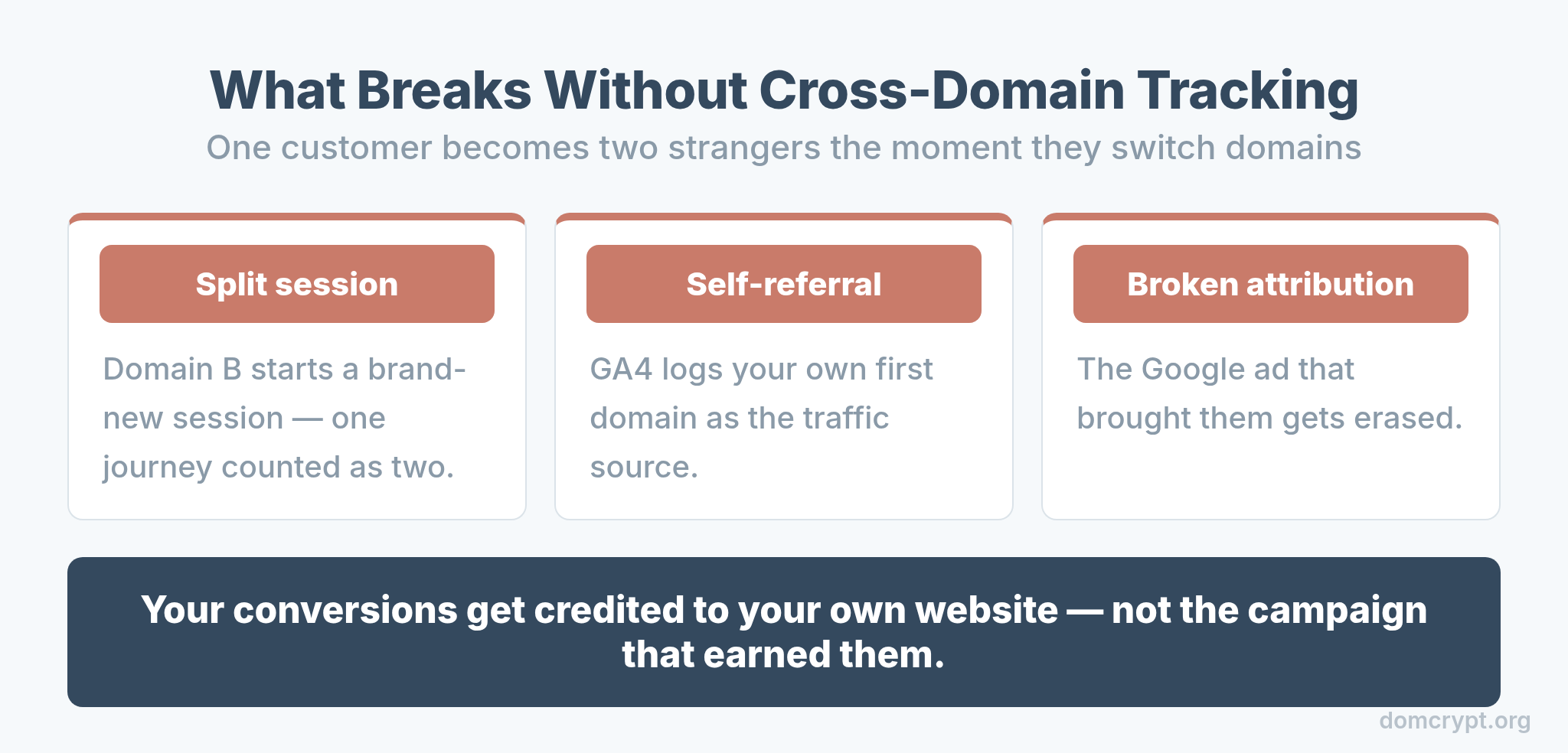
The moment a user lands on the second domain, GA4 starts a brand-new session and treats your own first domain as the traffic source — a self-referral. One person becomes two users, one journey becomes two sessions, and the original source (the Google ad that actually brought them) gets erased. Your conversions end up credited to your own website instead of the campaign that earned them.
How GA4 Cross-Domain Tracking Works
The fix is a mechanism called linking, and understanding it for thirty seconds makes the setup obvious.
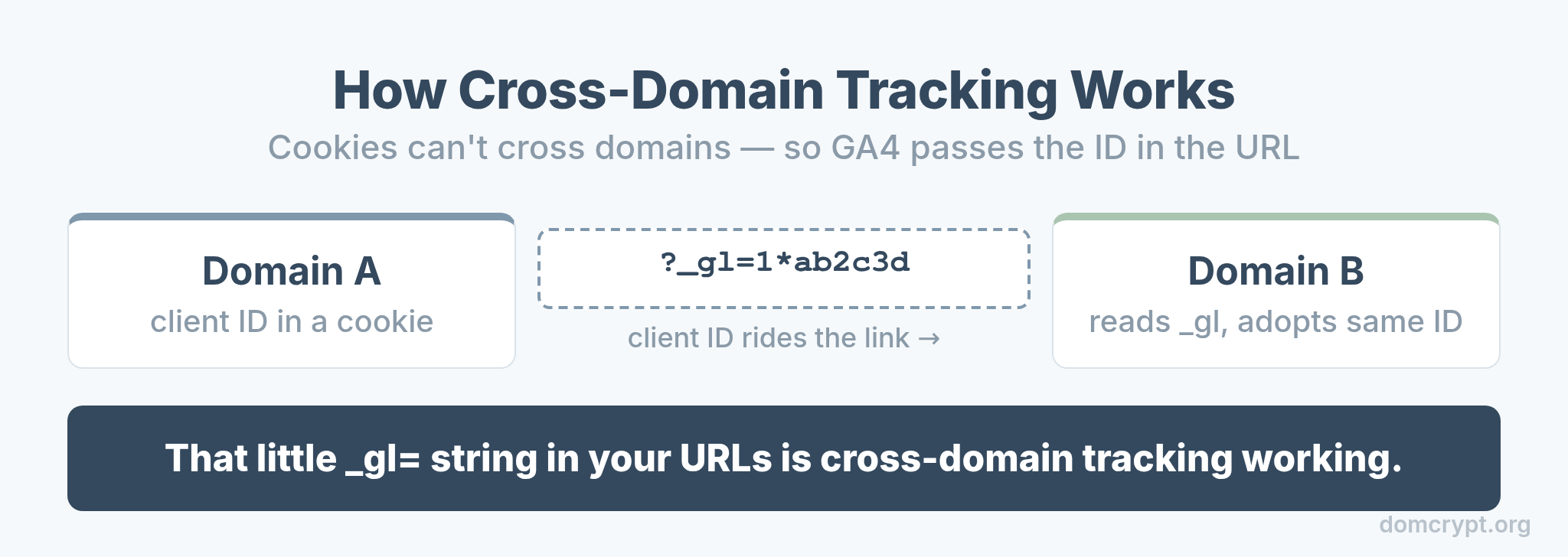
GA4 identifies each user with a client ID stored in a cookie — but cookies can’t be read across different domains. So when a user clicks from domain A to domain B, GA4 appends the client ID to the link as a _gl parameter in the URL. Domain B reads it, adopts the same client ID, and the journey stays unified. That little _gl=... string in your URLs is cross-domain tracking working.
The Setup: Just a Few Clicks
For standard cases, GA4 does the hard part. You only list your domains.
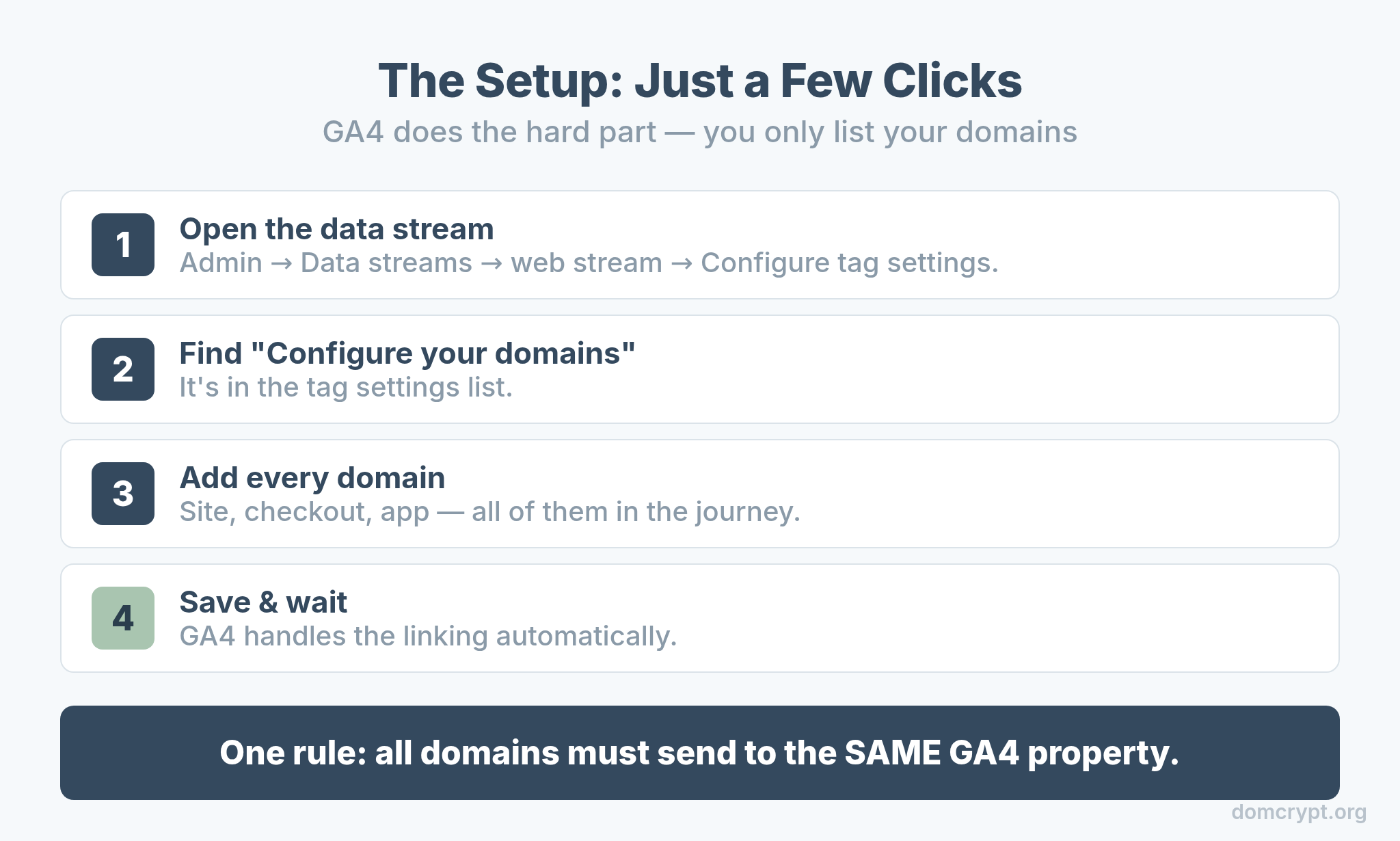
- Open the data stream. Admin → Data streams → your web stream → Configure tag settings.
- Find “Configure your domains.” It’s under the tag settings list.
- Add every domain. List all the domains in the journey — your site, checkout, app, all of them.
- Save and wait. GA4 handles the linking automatically from there.
One requirement: all the domains must send data to the same GA4 property. Cross-domain tracking unifies domains within one property — it can’t stitch together separate properties.
Add Domains to the Unwanted Referrals List
Listing your domains is step one; telling GA4 to stop treating them as referrers is the step people miss.
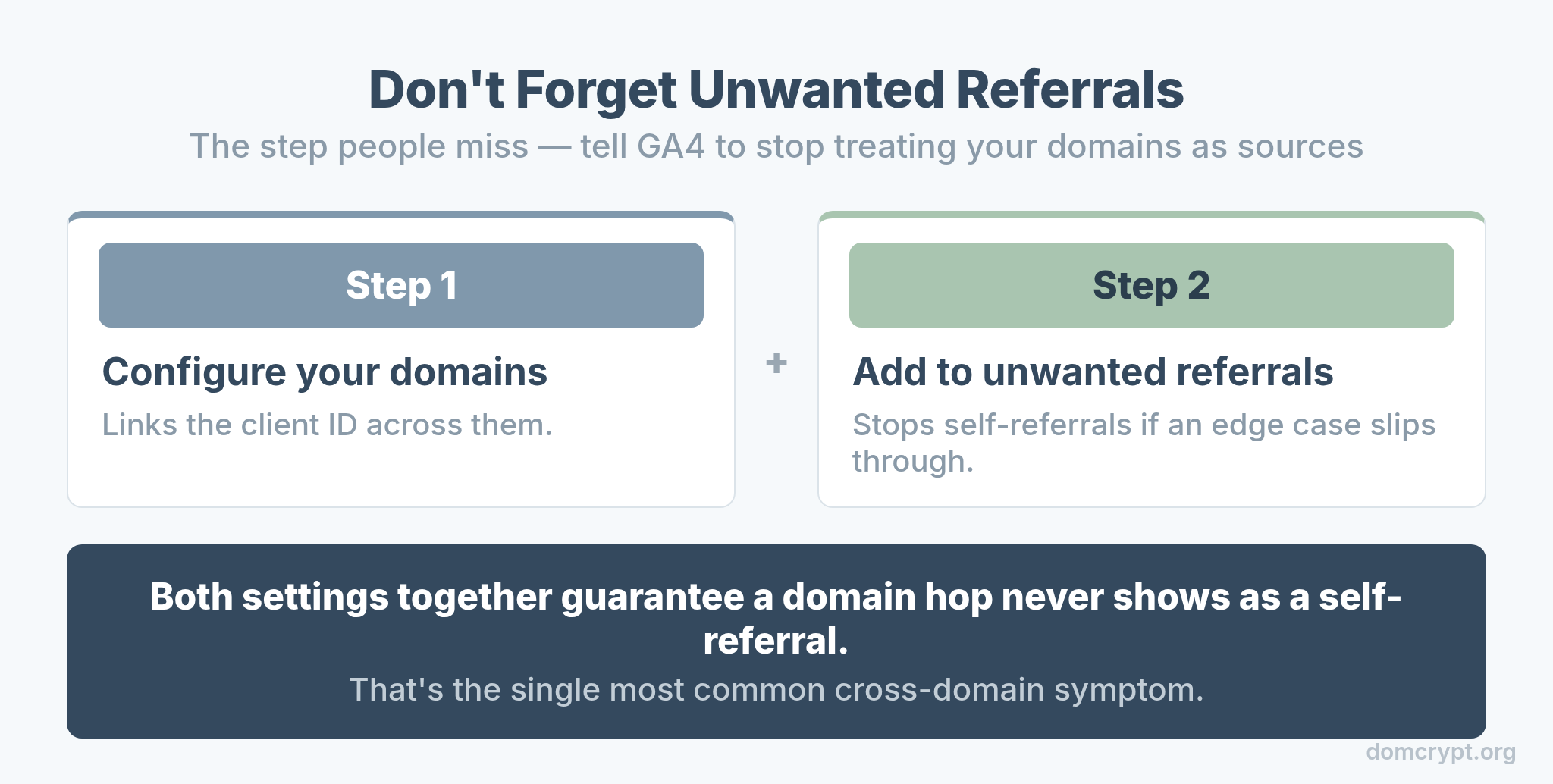
Even with domains configured, you should add them to the unwanted referrals list (under Google tag settings). This stops GA4 from logging your own domains as traffic sources if a linking edge case slips through. Together, the two settings guarantee that a hop between your domains never shows up as a self-referral — which is the single most common cross-domain symptom. This is what keeps your attribution model honest, because the original source survives the domain hop.
How to Verify It Works
Never assume cross-domain tracking is working — confirm it, because a silent failure looks exactly like normal data.
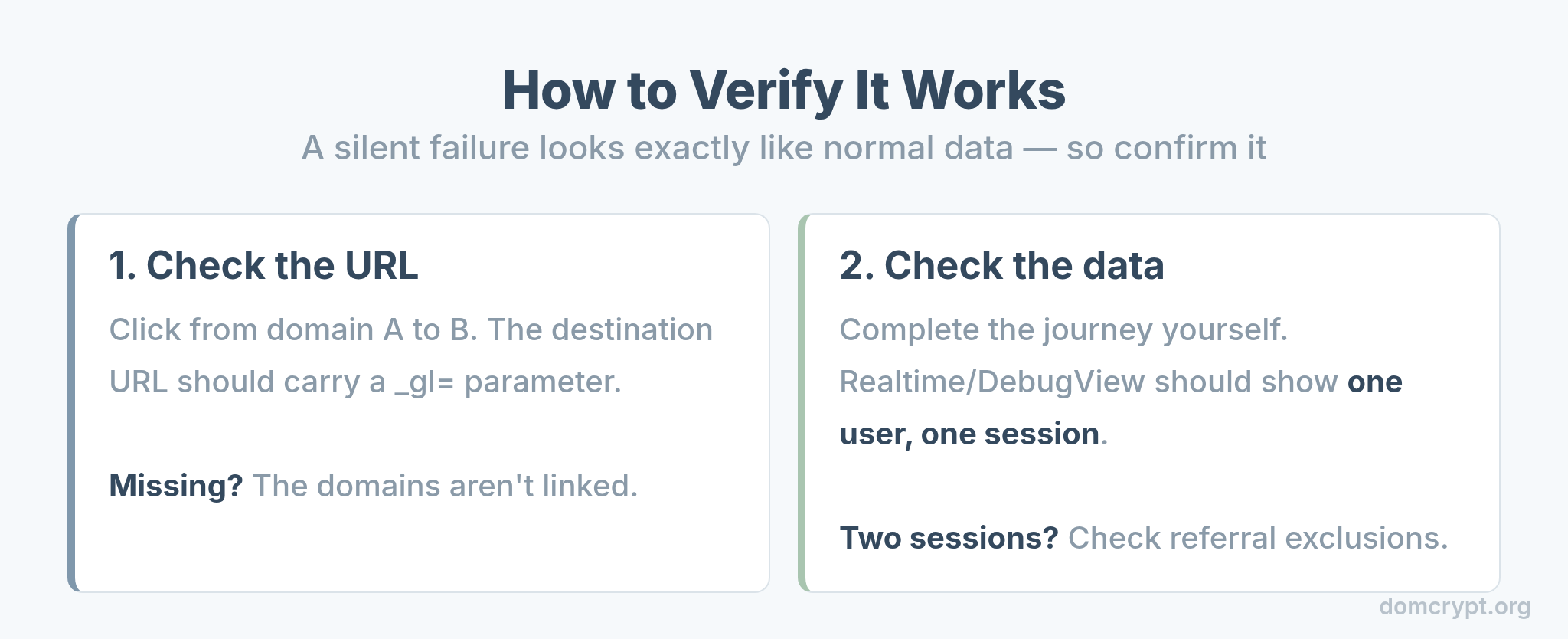
First, check the URL: click a link from domain A to domain B and confirm the destination URL carries a _gl= parameter. Second, check the data: complete a cross-domain journey yourself, then confirm in Realtime or DebugView that it stays one user and one session, not two. If the _gl parameter is missing, the domains aren’t linked; if it’s present but you still see two sessions, check your referral exclusions.
Common Cross-Domain Mistakes
Most cross-domain failures come down to a short list of oversights.
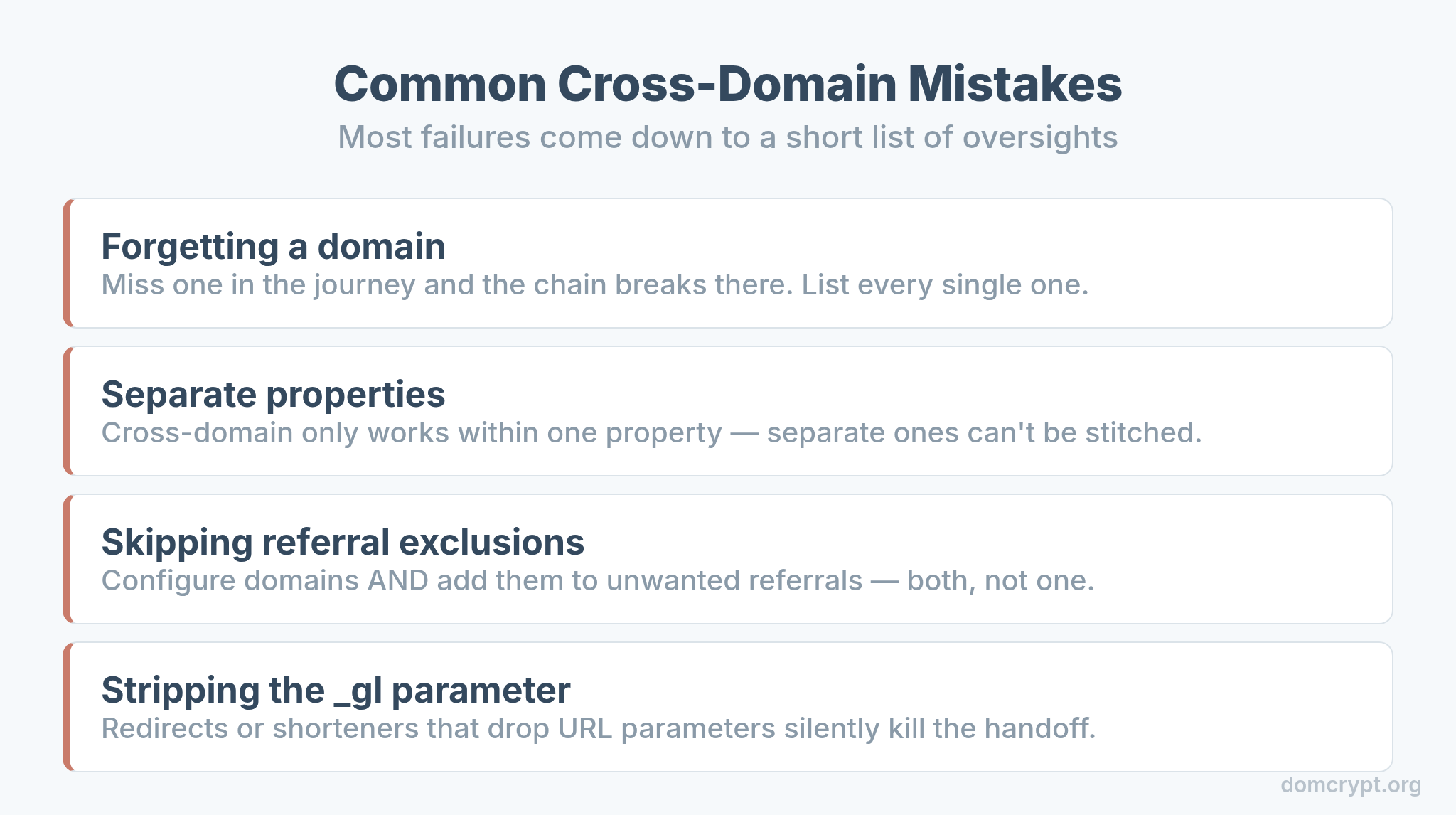
- Forgetting a domain. Miss one domain in the journey and the chain breaks there. List every single one.
- Separate properties. Cross-domain only works within one property. Different properties can’t be stitched.
- Skipping referral exclusions. Configure domains and add them to unwanted referrals — both, not one.
- Stripping the
_glparameter. Redirects or link shorteners that drop URL parameters will silently kill the handoff.
And as ever, if your session or source numbers suddenly shift, suspect a tracking change before a behavior change — the same diagnostic instinct behind reading bounce rate vs engagement rate correctly.
The Bottom Line
Cross-domain tracking turns a fractured, two-stranger journey back into one real customer. GA4 passes the client ID between domains with the _gl URL parameter, so all you do is list your domains in the data stream, add them to unwanted referrals, and verify the handoff actually fires. Get it right and your sessions stop splitting, your self-referrals disappear, and your campaigns finally get credit for the conversions they earned across every domain in the path.