GA4 Conversion Tracking: Complete Setup Guide
If you opened GA4 looking for the “Conversions” menu and couldn’t find it, you’re not losing your mind. In March 2024, Google renamed conversions to key events — and that single word change confuses people more than any tracking setup ever did. So before we set anything up, let’s make the terminology crystal clear, then build conversion tracking the right way, start to finish.
This guide assumes you have a GA4 property running. If you’re still deciding what to measure first, the key website metrics worth tracking are a good place to start, because your key events should map directly to them.
Conversion, Key Event, Event: What’s the Difference?
GA4 now uses three distinct words for three distinct things. Mixing them up is the root of almost every “my numbers don’t match” support ticket.
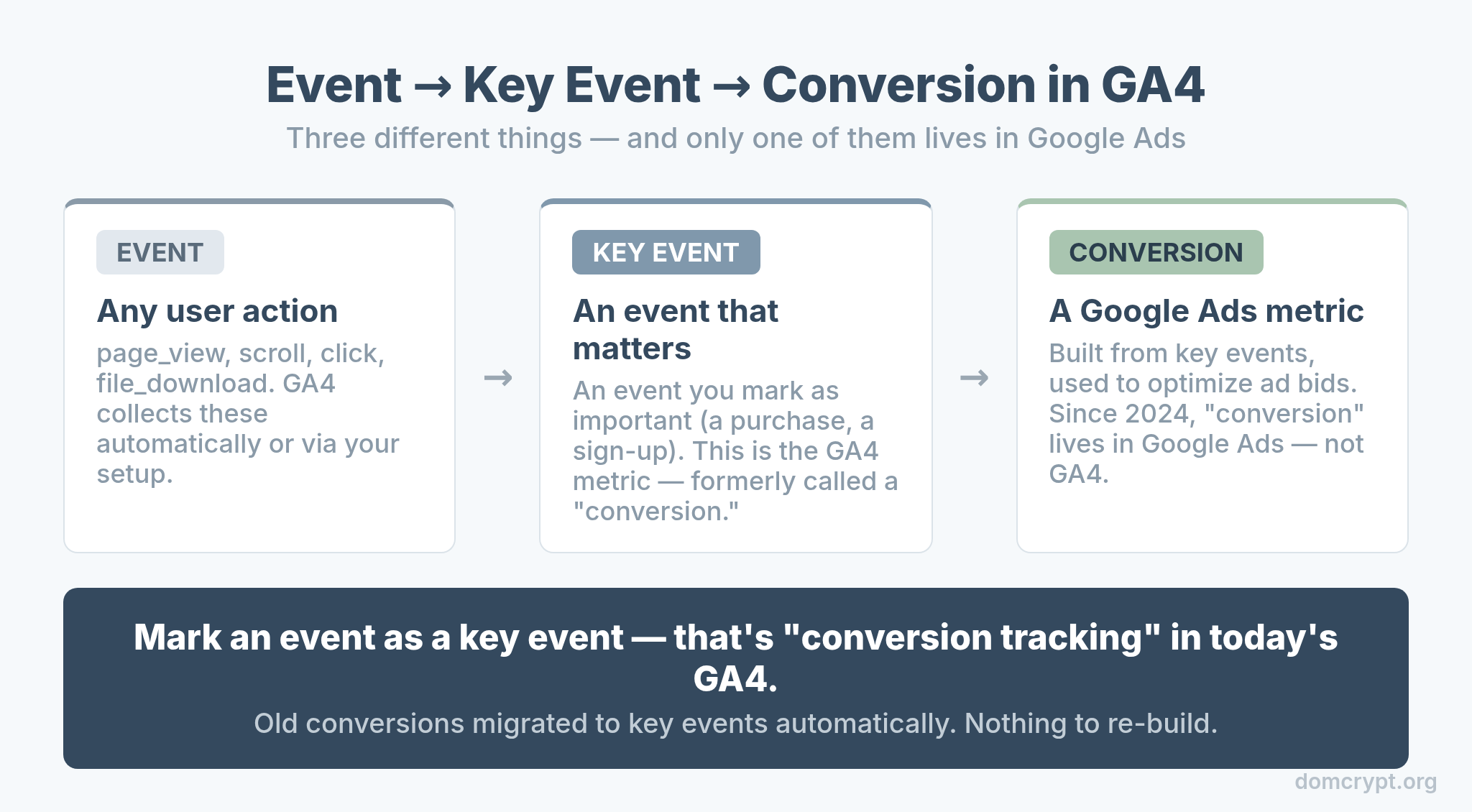
- An event is any user action GA4 records — a
page_view, a scroll, a click, afile_download. - A key event is an event you’ve marked as important to your business, like a purchase or a sign-up. This is the GA4 metric that used to be called a “conversion.”
- A conversion now lives in Google Ads. It’s built from your key events and used to optimize ad bidding.
So when someone says “set up conversion tracking in GA4,” what they actually mean today is mark an event as a key event. That’s the whole job. The word “conversion” stuck around in everyone’s vocabulary, but inside GA4 the button now says “key event.”
What Actually Changed in 2024 (and What Didn’t)
Here’s the part that calms everyone down: the rename was cosmetic. Google automatically migrated every existing conversion into a key event. No data was lost, no setup broke, and no reconfiguration was required.
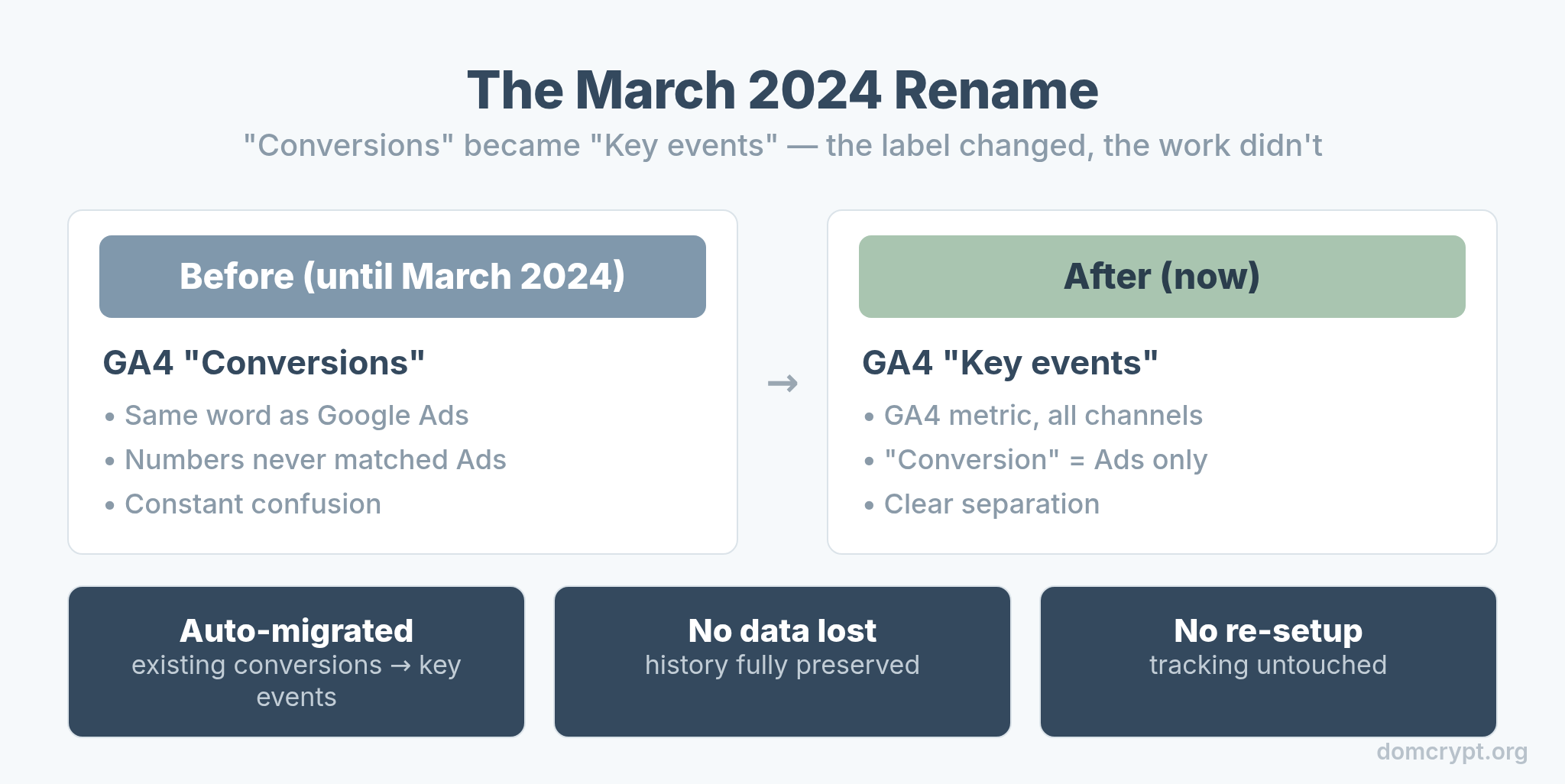
What changed was the label in the interface and a few report names. What stayed the same was everything that matters: your tracking, your historical data, and the underlying logic. The only reason Google did this was to stop GA4 and Google Ads from both using the word “conversion” for numbers that never matched. Now GA4 measures key events across all channels, and Google Ads owns the word “conversion” for ad optimization.
The Two Ways to Create a Key Event
There are exactly two paths, and choosing the right one saves you a lot of cleanup later.
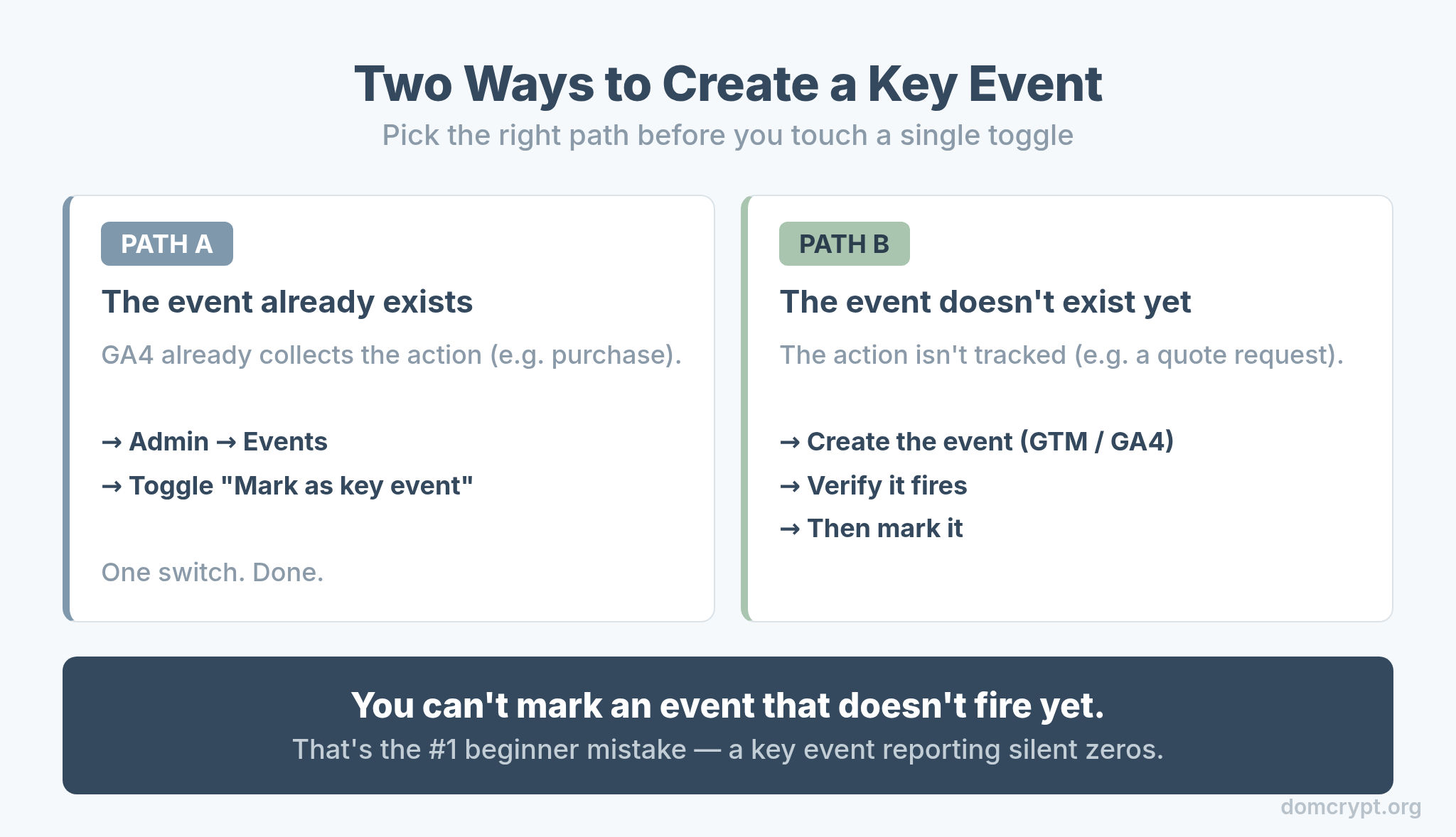
Path A — toggle an existing event. If GA4 already collects the action you care about (say, a purchase event from an e-commerce setup), you just flip a switch. Go to Admin → Events, find the event, and turn on “Mark as key event.” Done.
Path B — create the event first, then mark it. If the action isn’t tracked yet — a quote request, a specific button click — you need an event before you can mark it. Create it with Google Tag Manager or GA4’s built-in event creation, confirm it’s firing, and only then mark it as a key event. Marking an event that doesn’t exist yet is the single most common beginner mistake.
Step-by-Step: Setting Up a Key Event
Let’s walk the full path for a typical case — tracking a newsletter sign-up that isn’t measured yet.
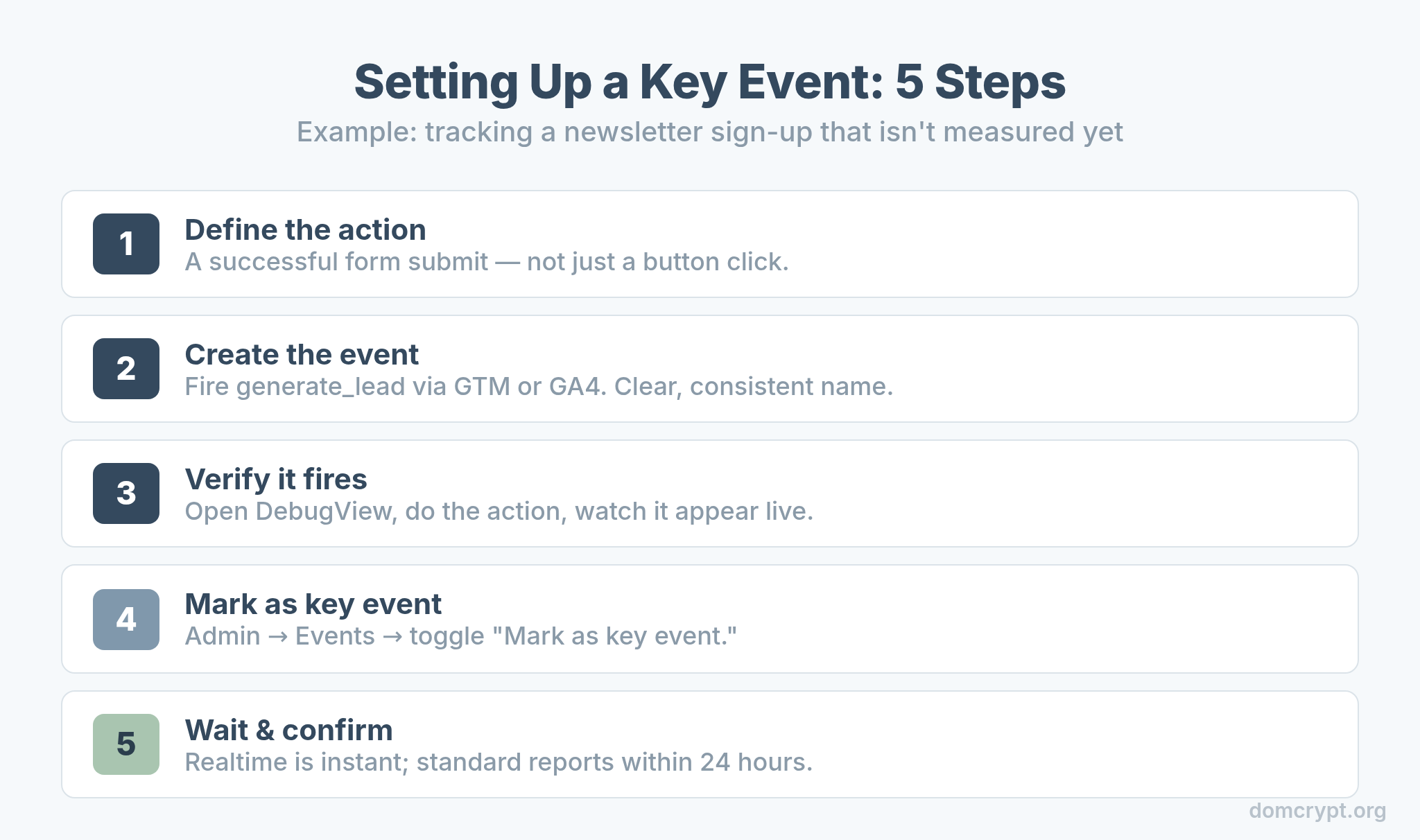
- Define the action. Decide exactly what counts — e.g., a successful submit on the newsletter form, not just a button click.
- Create the event. Use GTM or GA4’s event builder to fire an event like
generate_leadwhen the form succeeds. Give it a clear, consistent name. - Verify it fires. Open DebugView and complete the action yourself. Watch the event appear in real time before going further.
- Mark it as a key event. In Admin → Events (or Key events), toggle “Mark as key event” for your new event.
- Wait and confirm. Key event data shows in standard reports within 24 hours. Realtime confirms it immediately.
Notice that verification happens before you mark the event, not after. If the event isn’t firing cleanly, marking it just gives you a broken key event that quietly reports zeros.
Which Key Events Should You Track?
More is not better. A focused set of key events — usually three to five — keeps your reports readable and your optimization honest. Track the actions that represent real business value, not every click on the page.
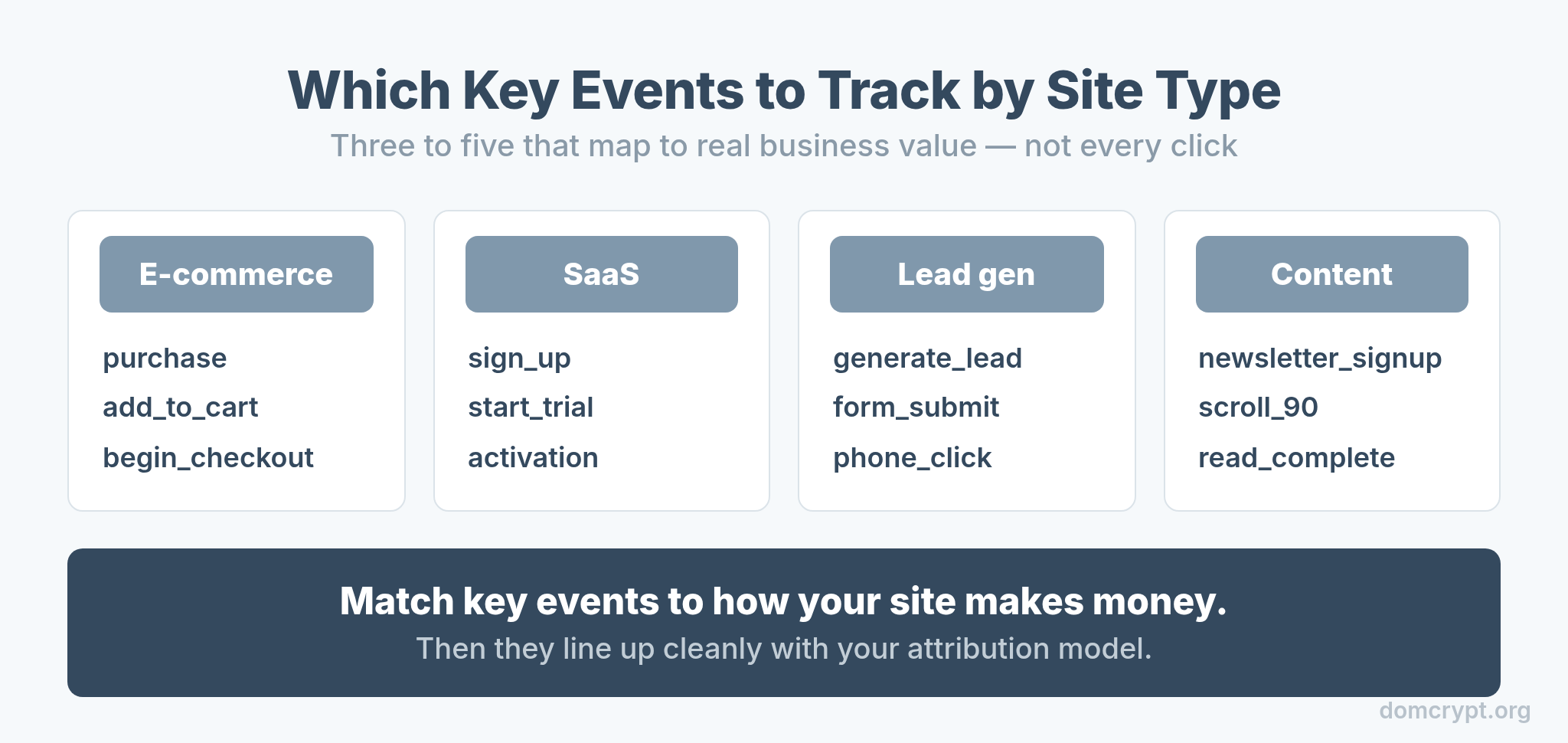
The right key events depend on your site’s goal. An e-commerce store cares about purchases and add-to-carts; a SaaS product cares about sign-ups and activations; a lead-gen site cares about form submissions. Match your key events to how your site actually makes money, and they’ll line up neatly with your attribution model when you analyze which channels drive them.
How to Verify Conversion Tracking Works
A key event you haven’t verified is a guess. Use this three-layer check before you trust a single number.
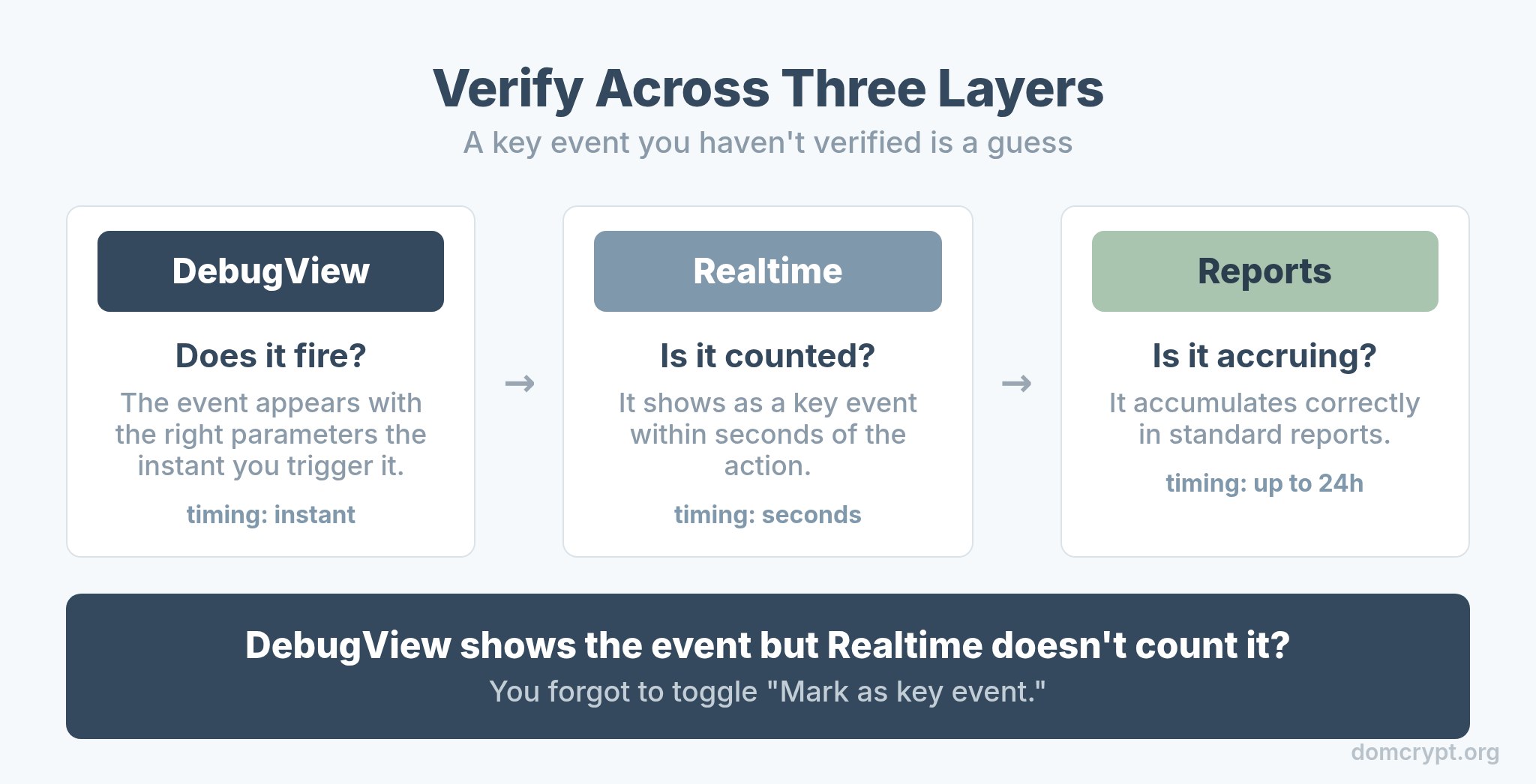
DebugView confirms the event fires with the right parameters the moment you trigger it. Realtime confirms it’s being counted as a key event within seconds. Standard reports confirm it’s accumulating correctly over the next 24 hours. If all three agree, you’re done. If DebugView shows the event but Realtime doesn’t count it as a key event, you forgot to toggle the mark.
Common Mistakes to Avoid
A few errors come up over and over. Skip them and you’ll skip most of the debugging.
- Marking an event that doesn’t fire. Always verify in DebugView first. A key event with no event behind it reports nothing.
- Tracking too many key events. Twenty key events means none of them are key. Keep it to the three to five that matter.
- Expecting instant report data. Realtime is immediate; standard reports take up to 24 hours. Don’t panic at an empty report an hour after setup.
- Confusing GA4 and Google Ads numbers. They count differently by design. Your key events and your Ads conversions will rarely match exactly — and that’s expected.
One more for the road: a spike or drop in key events is often a tracking change, not a real business change. The same caution applies to engagement — if your numbers look strange, check the setup before the strategy, as covered in bounce rate vs engagement rate in GA4.
The Bottom Line
Conversion tracking in GA4 is simpler than the vocabulary makes it sound. You create an event, verify it fires, and mark it as a key event — that’s it. The 2024 rename from “conversions” to “key events” changed the label, not the work, and your old setup migrated automatically. Keep your key events few and meaningful, verify every one across DebugView, Realtime, and reports, and remember that the word “conversion” now belongs to Google Ads. Get that mental model right, and the rest is just toggling switches.